Add New Owner and Resale Details
Learn how to add a new owner and create a new resale listing with all the necessary property details. This guide walks you through the process of entering contact information, property specifics, and pricing to effectively list a property for resale.
1Click "Clients"
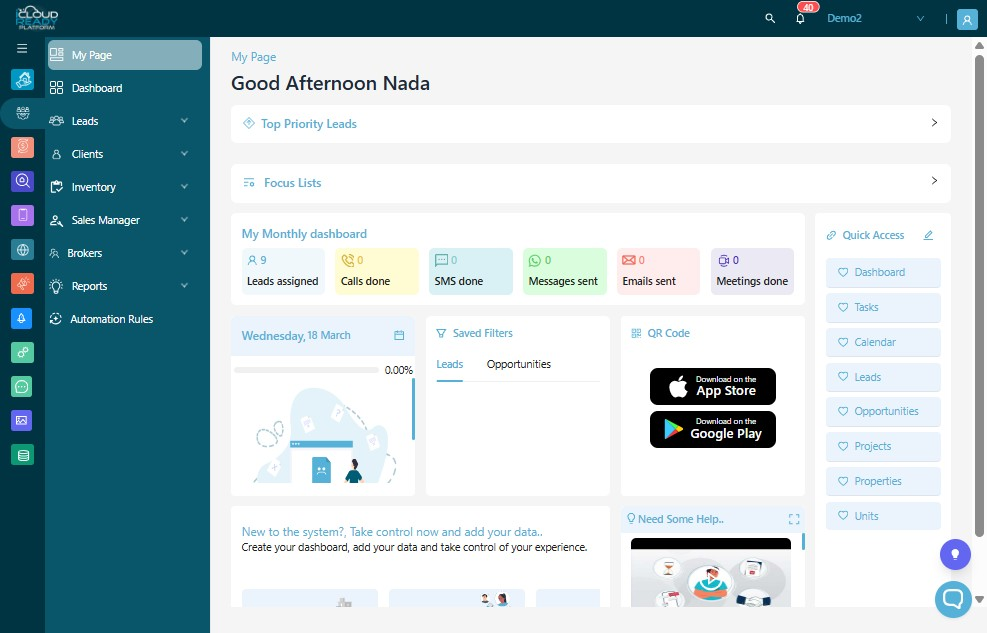
2Click "Resale"
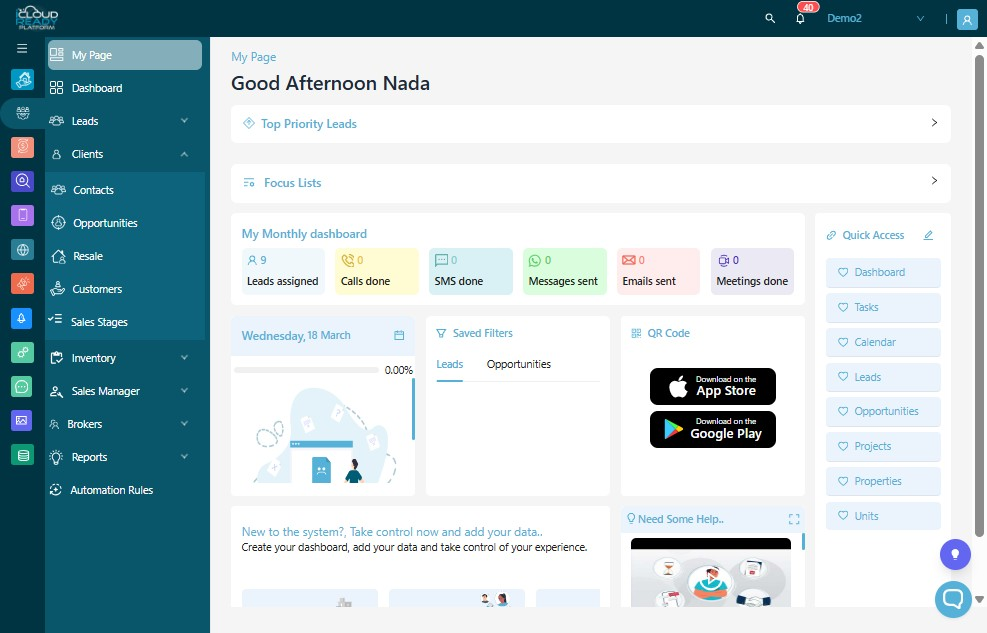
3Click "Add New Owner"
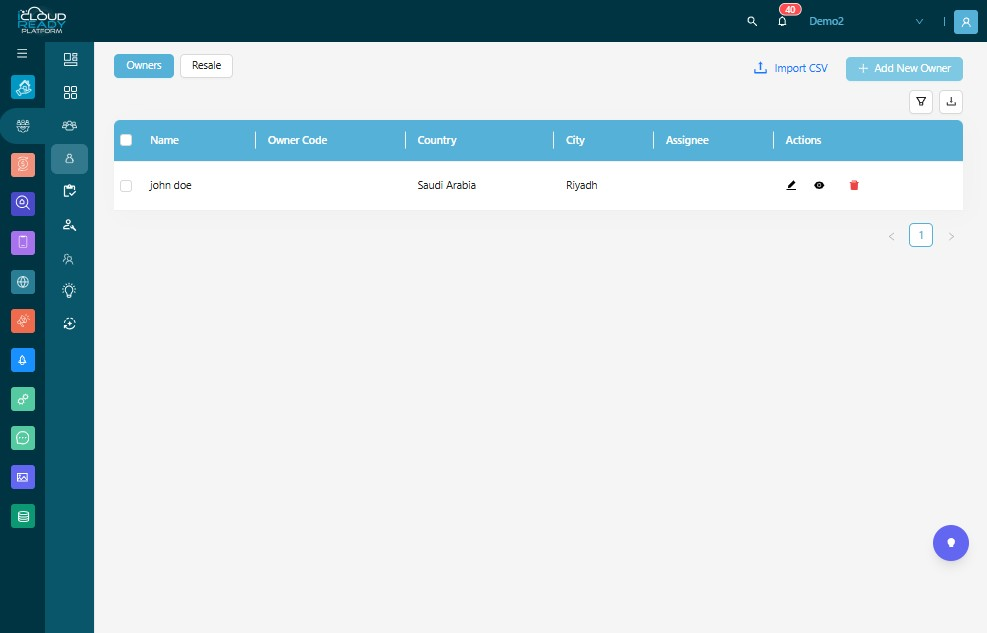
4Enter Owner's "Name"
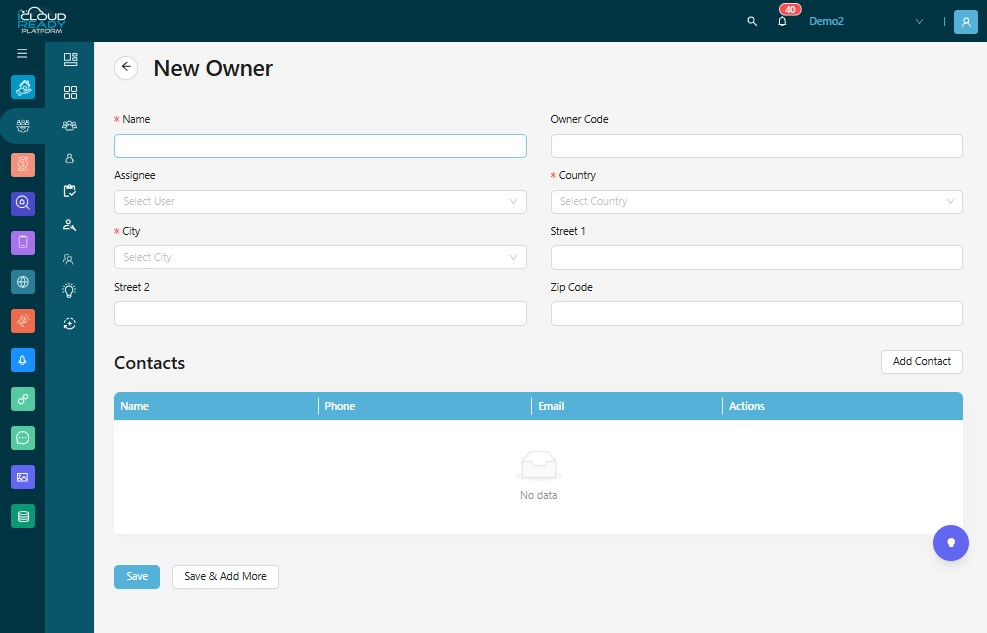
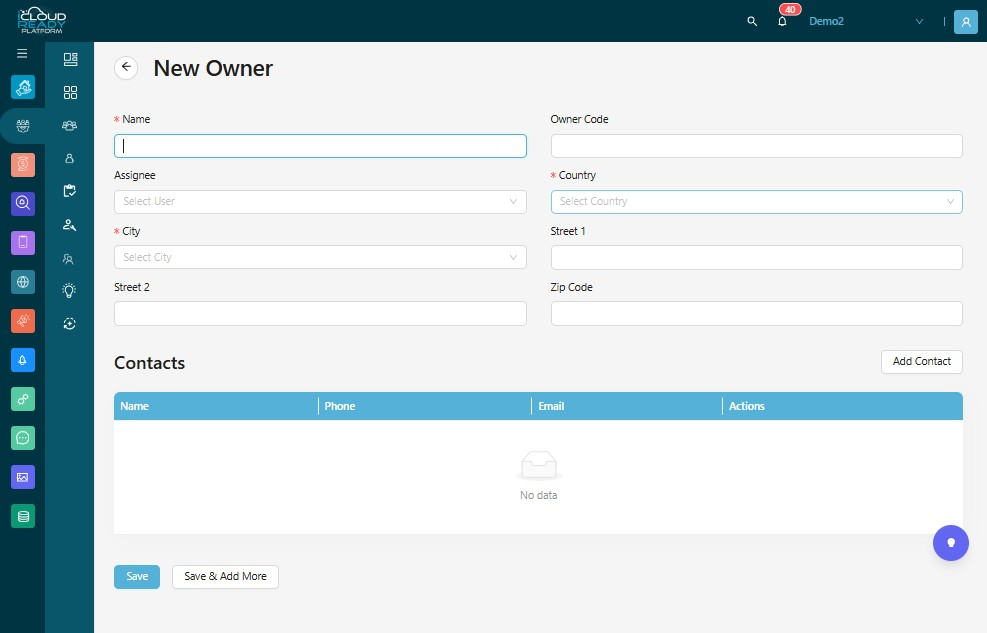
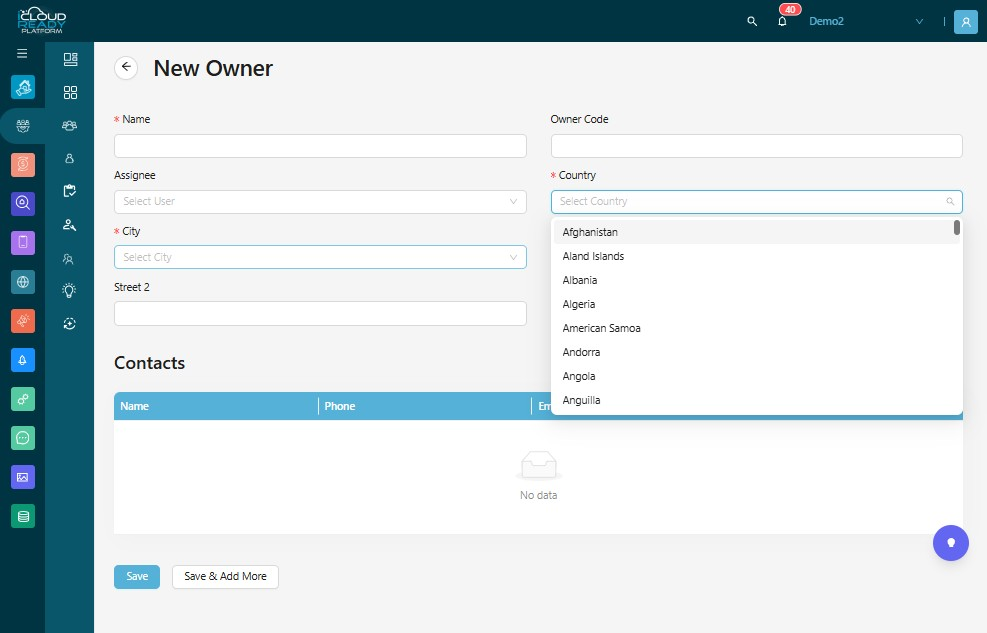
5Choose Owner's "Country"
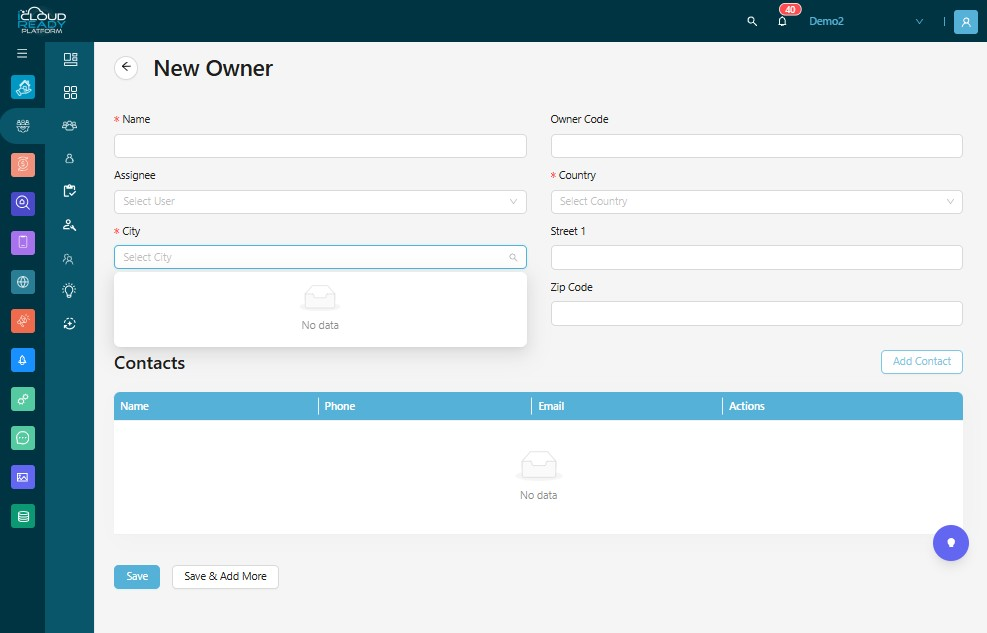
6Choose Owner's "City"
7Click "Add Contact"
8Enter Contact's "Name"
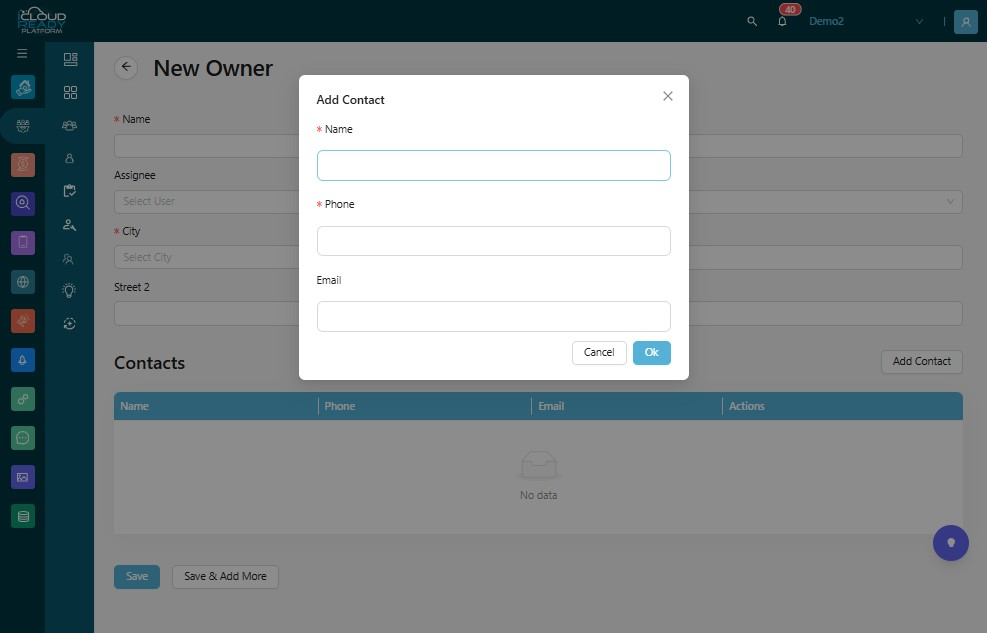
9Enter Contact's "Phone"
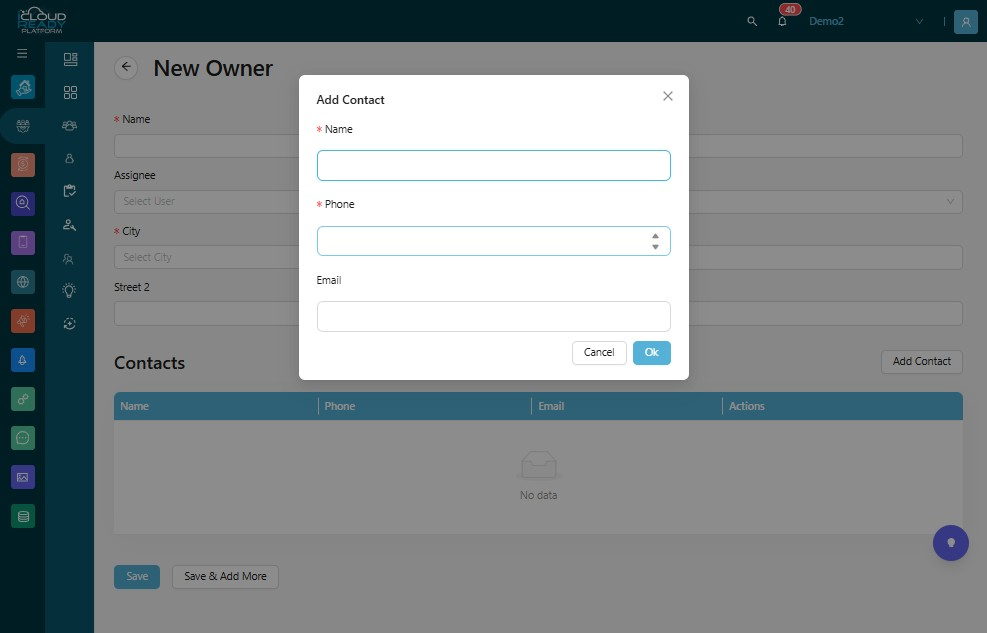
10Click "Ok"
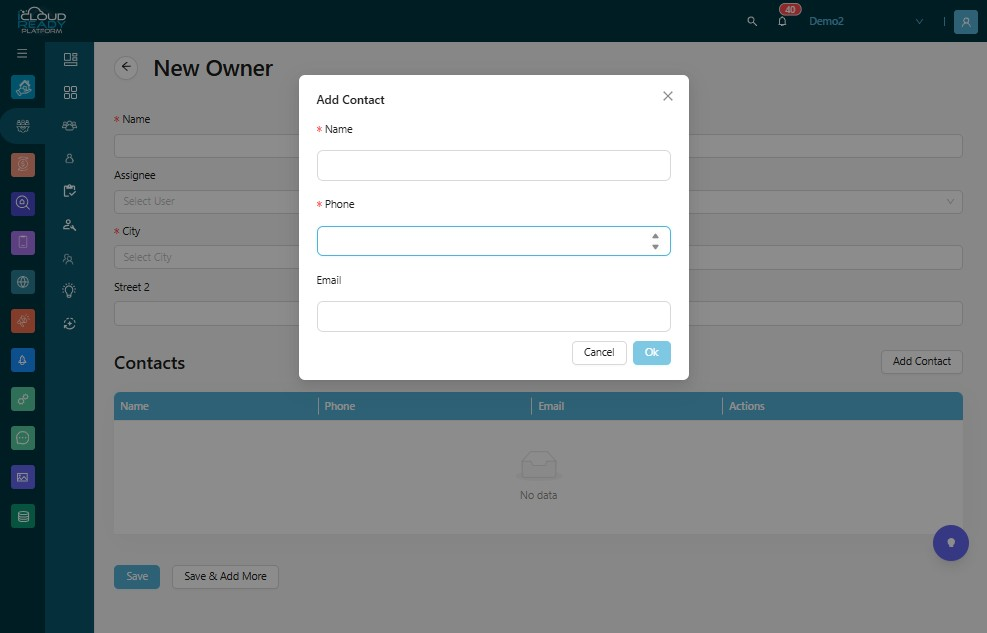
11Click "Save"
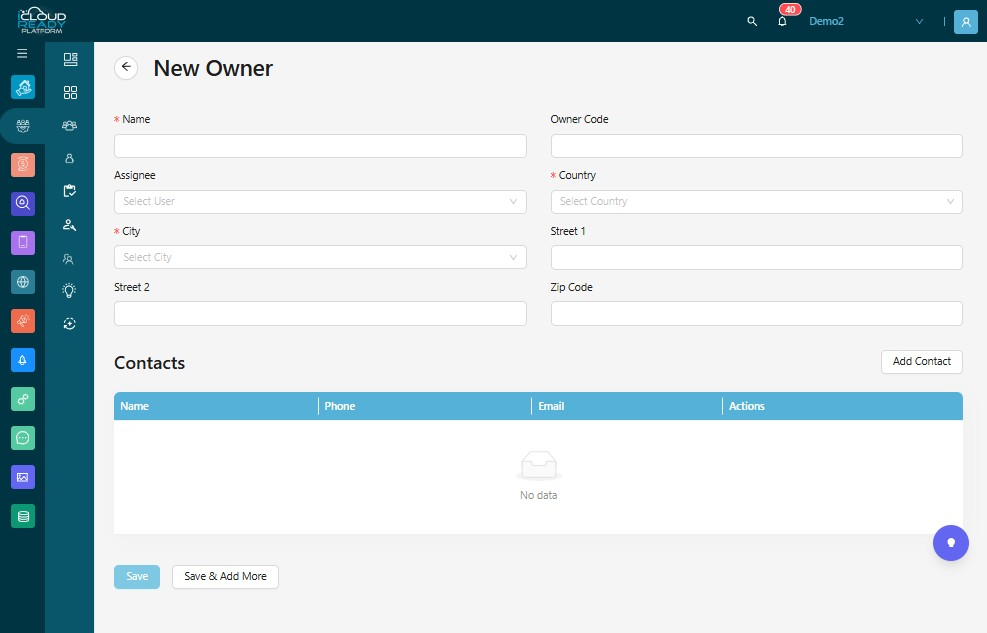
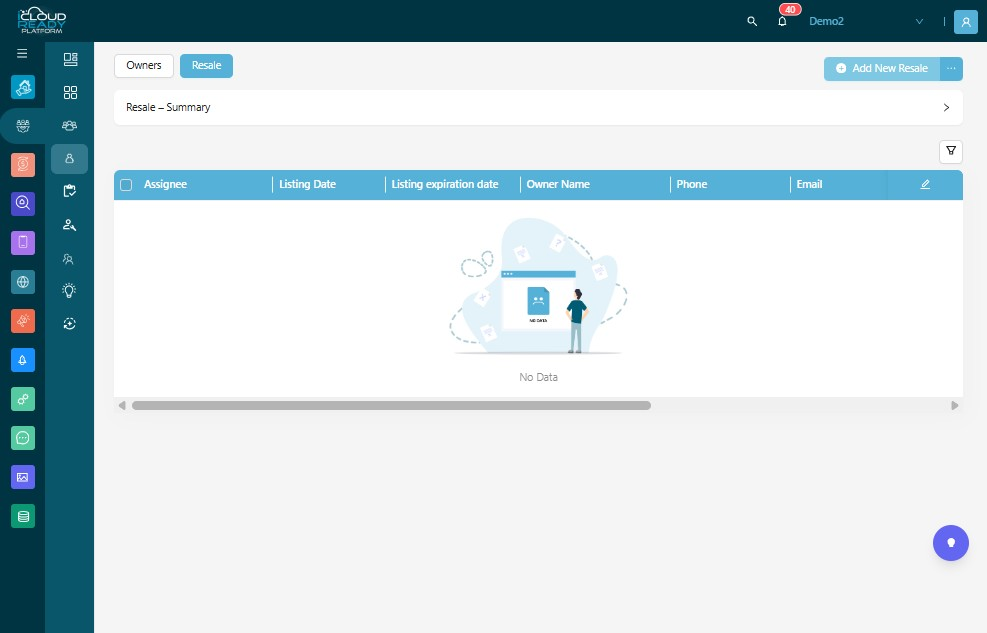
12Click "Resale"
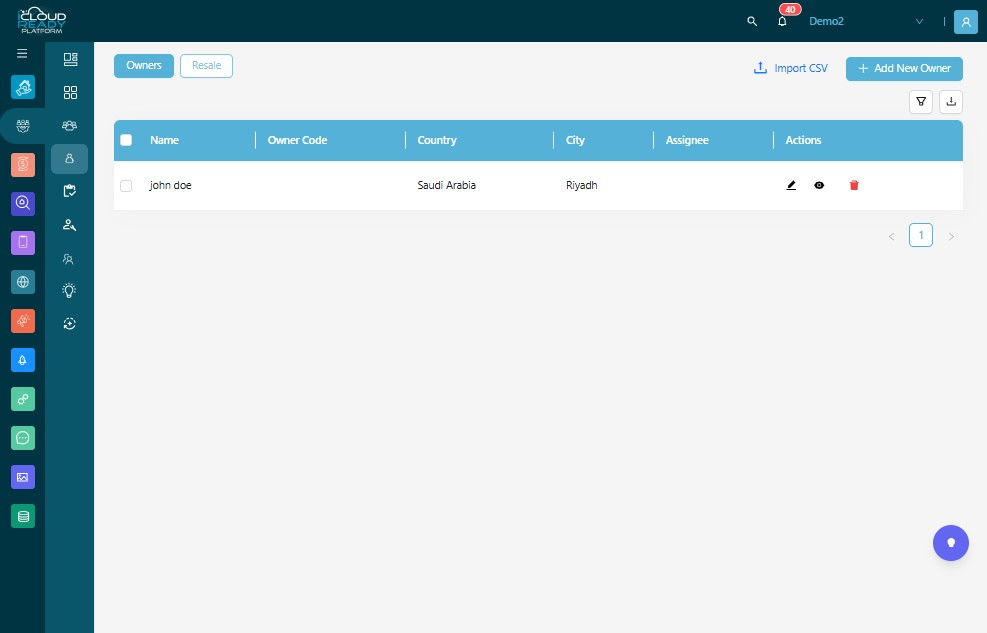
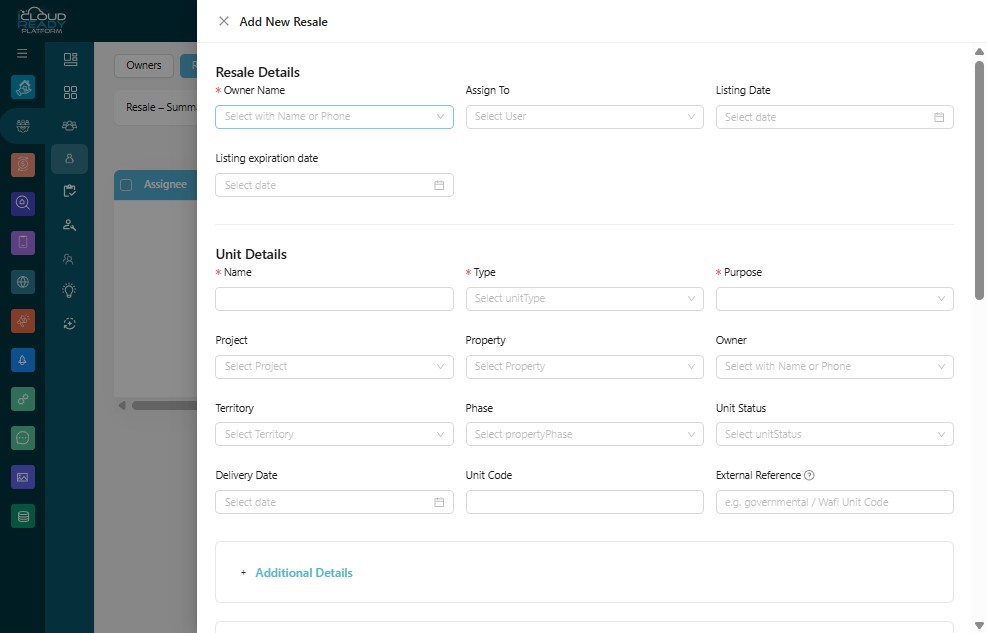
13Click "Add New Resale"
14Choose "Owner Name"
15Enter Unit's "Name"
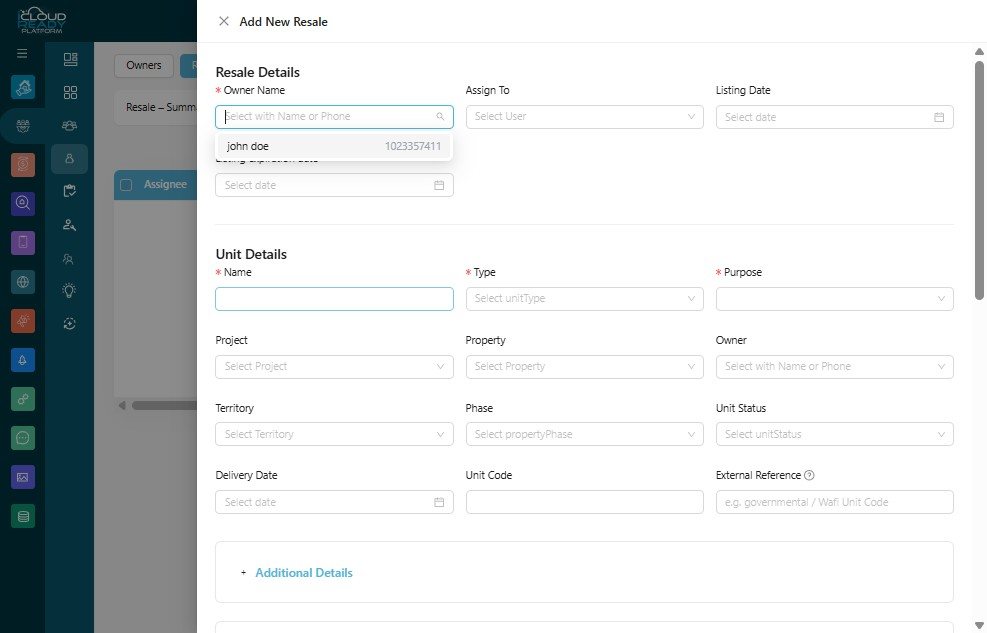
16Choose Unit's "Type"
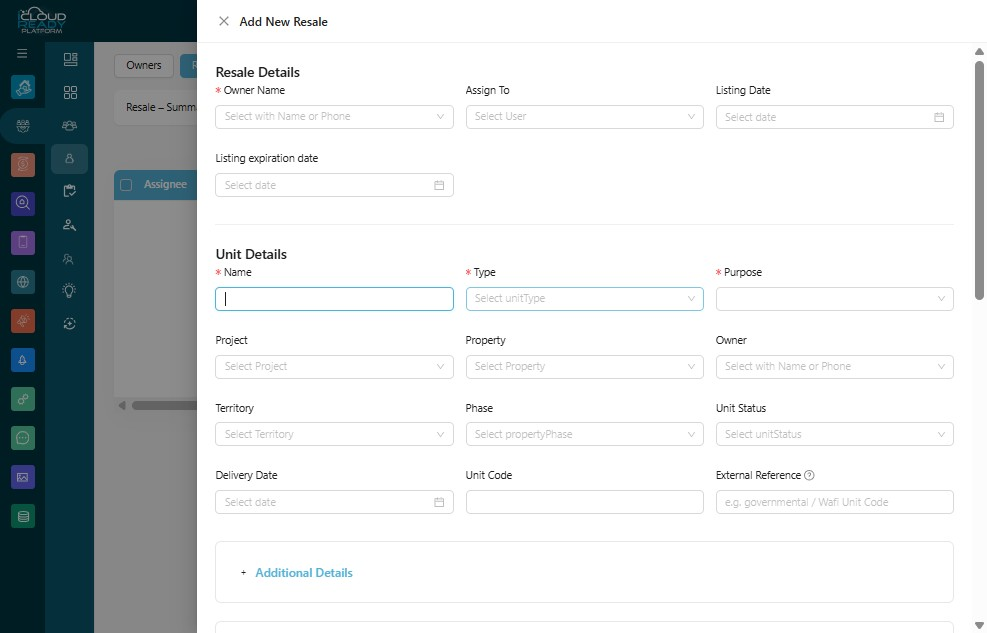
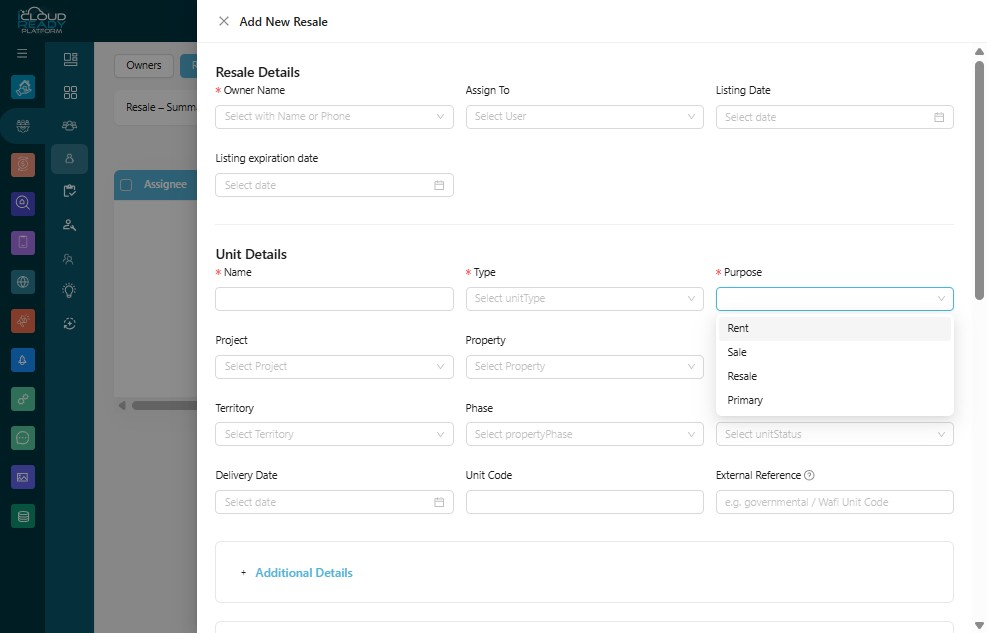
17Choose Unit's "Purpose"
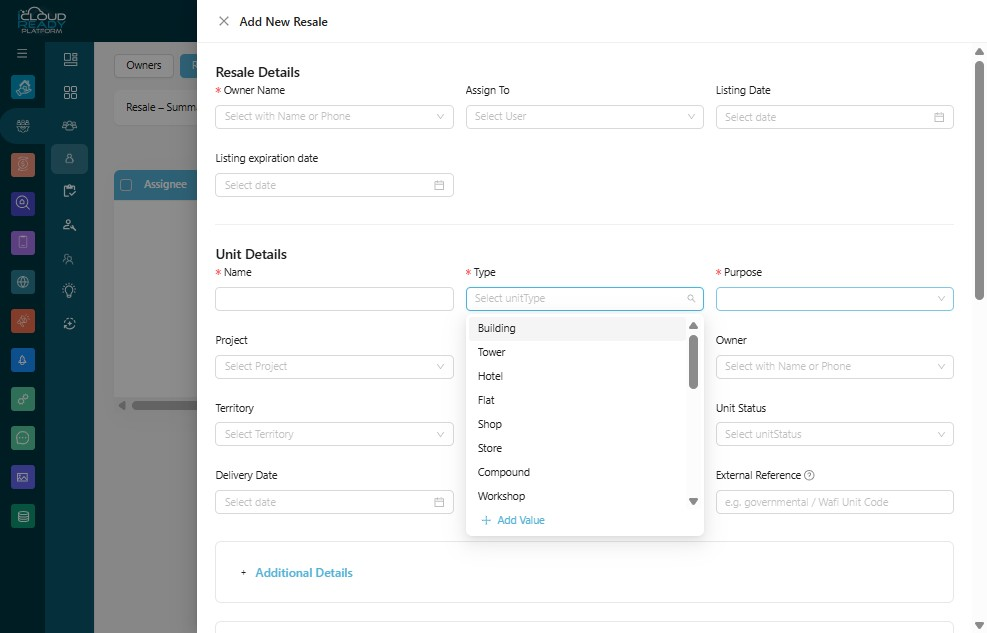
18Click "Additional Details"
19You can optionally enter these details
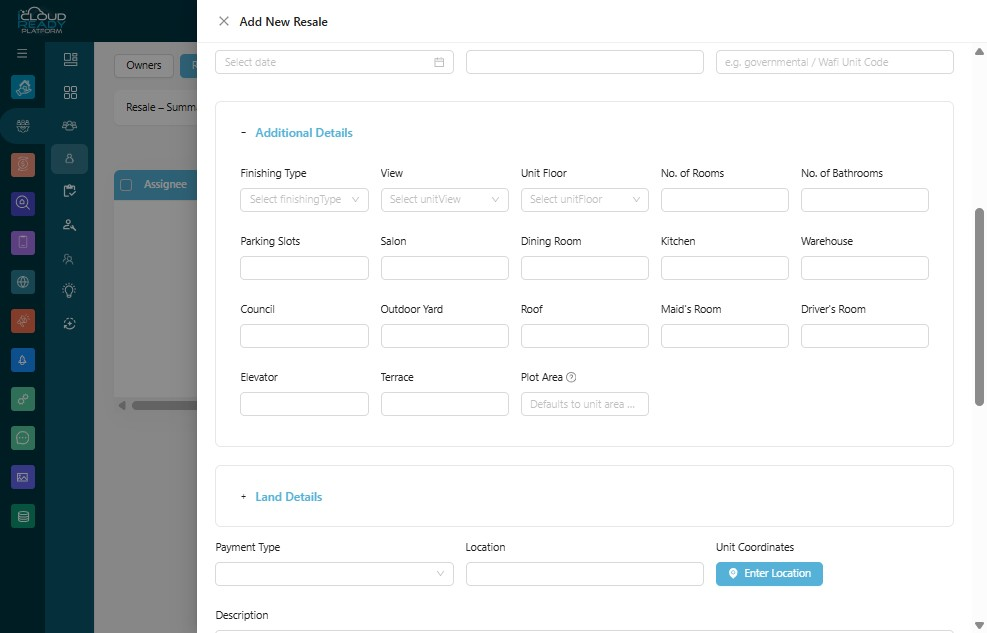
20Enter "Location"
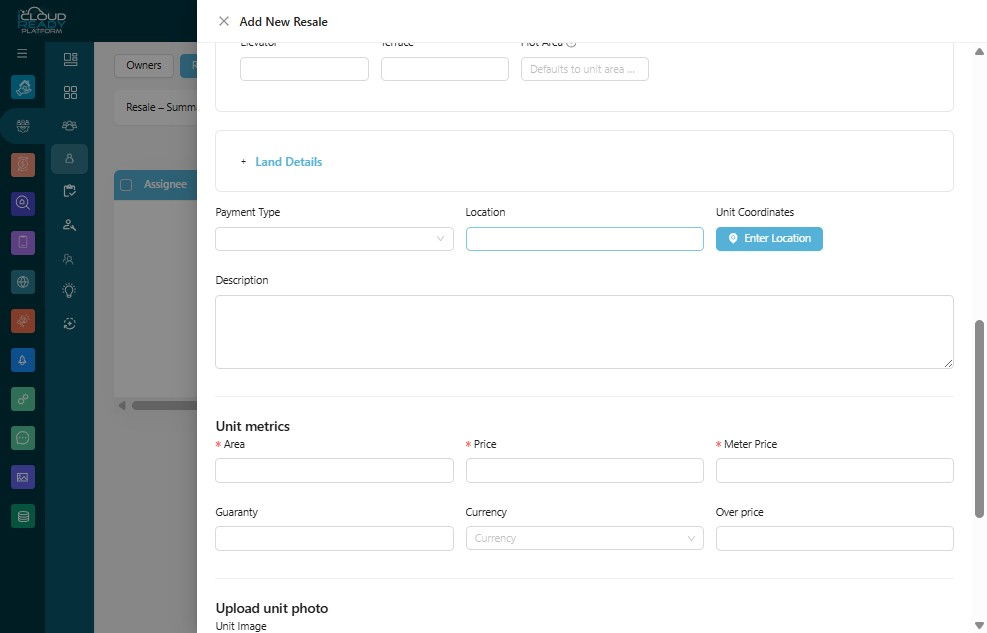
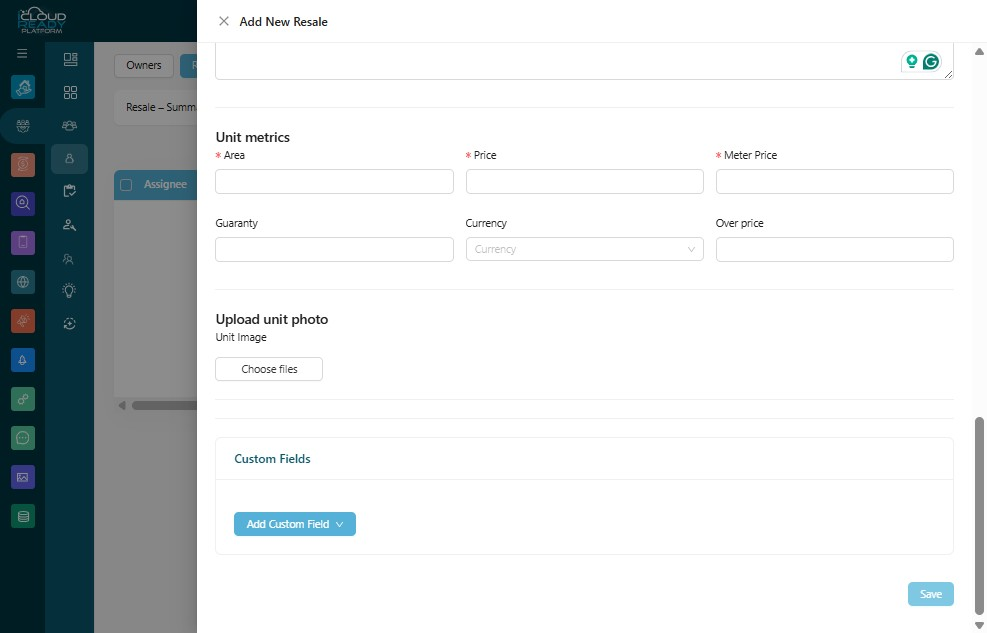
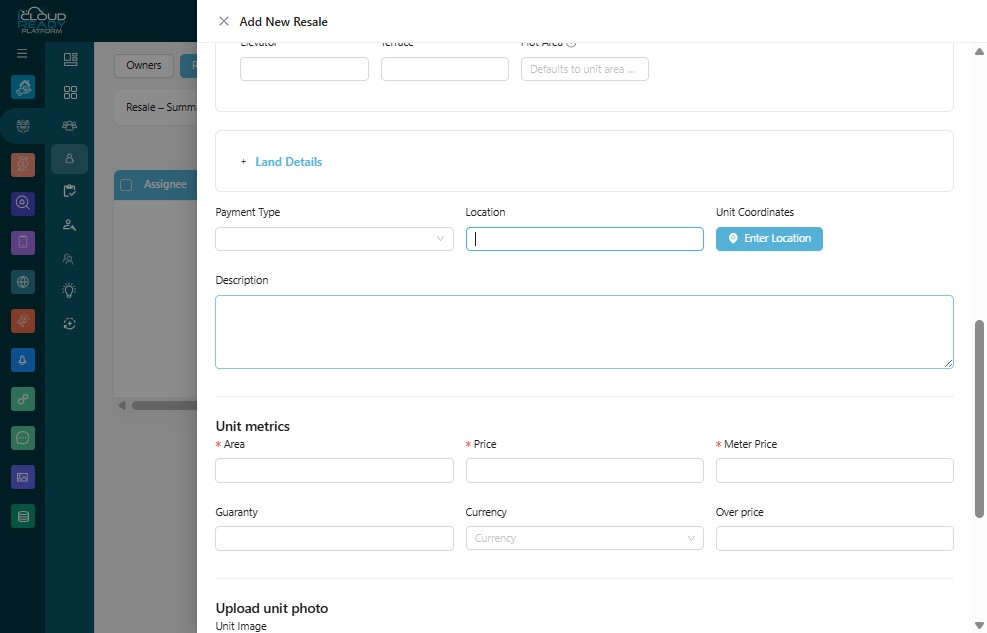
21You can optionally enter unit's "Description"
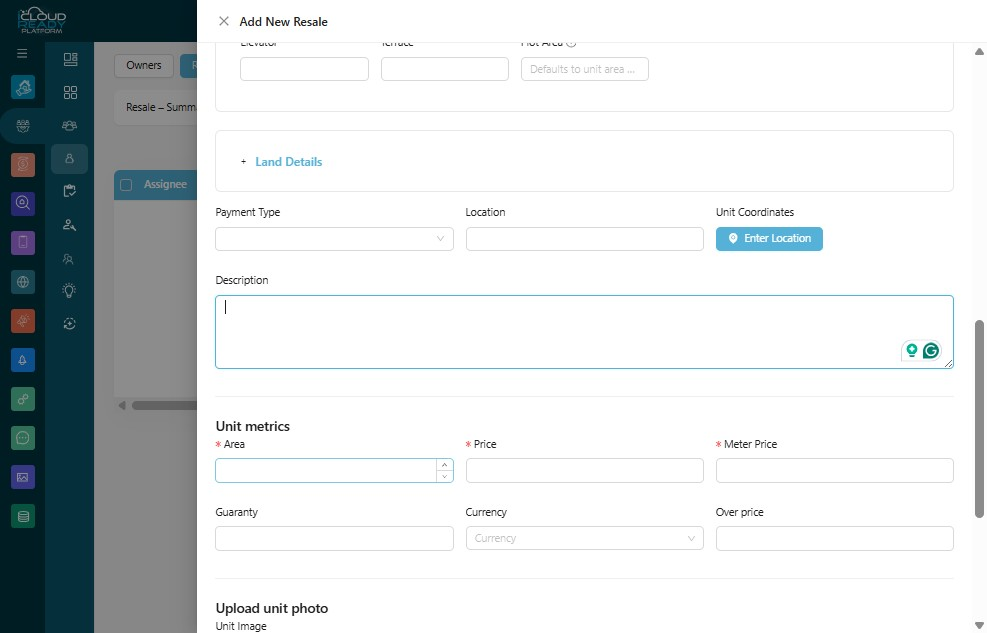
22Enter Unit "Surface Area"
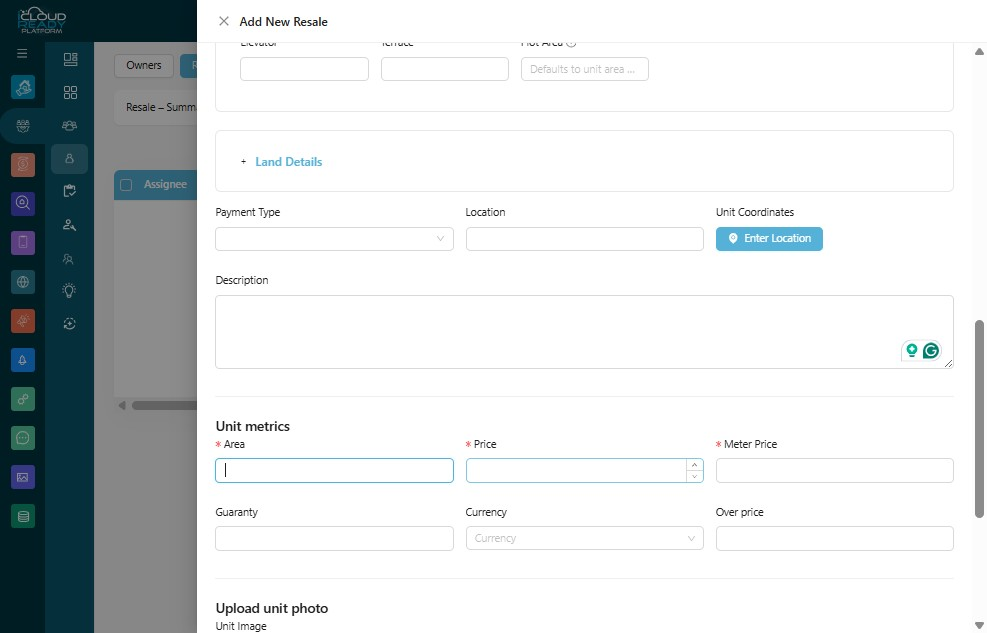
23Enter Unit "Price"
24You can optionally Upload "Unit Image" by Clicking "Choose file"
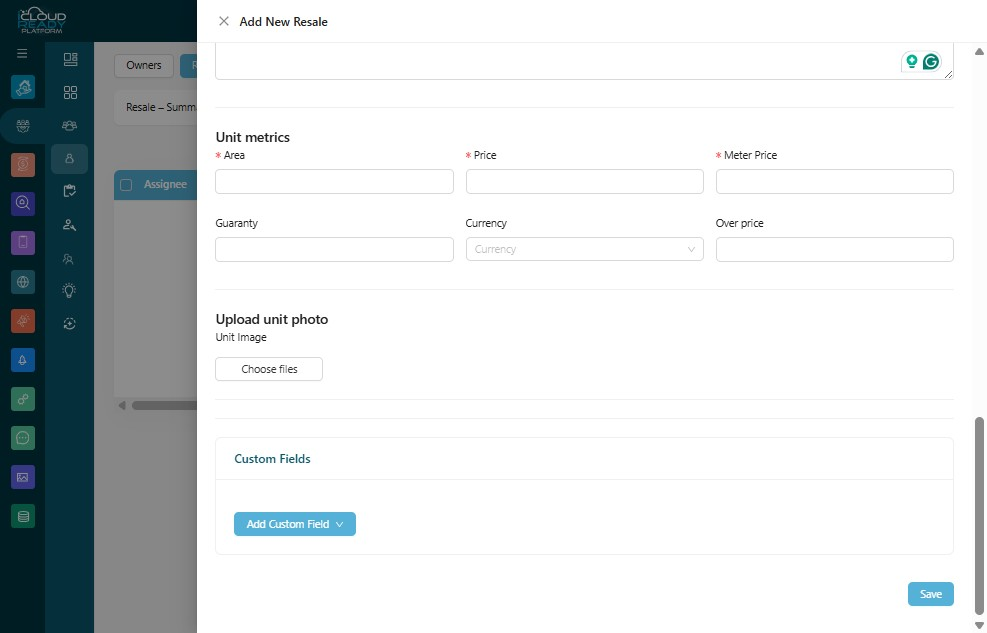
25Click "Save"